
Technology
How to use ChatGPT's new, more natural Voice Mode for conversations
Key Points
How to use ChatGPT's new, more natural Voice Mode for conversations Talking to ChatGPT just got a lot less awkward. AI assistants like ChatGPT have been advancing at a steady rate, offering more capabilities, better accuracy and faster responses with each new model. Generative AI is not perfect, and you really shouldn't see it as an unquestionable source of information, but for those who have embraced the technology, it might be more convenient to switch to voice conversations instead of...
How to use ChatGPT's new, more natural Voice Mode for conversations
Talking to ChatGPT just got a lot less awkward.
AI assistants like ChatGPT have been advancing at a steady rate, offering more capabilities, better accuracy and faster responses with each new model. Generative AI is not perfect, and you really shouldn't see it as an unquestionable source of information, but for those who have embraced the technology, it might be more convenient to switch to voice conversations instead of typing everything out. ChatGPT's original Voice Mode in 2023 relied on three separate systems to make it work. It would first convert your speech into text, generate an answer using a language model and then use a text-to-speech model to read it aloud.
The Advanced Voice Mode came after and featured a single multimodal model that improved things considerably. ChatGPT now ships with the GPT-Live model for handling voice conversations, and it is a major step up in terms of how natural the conversations feel. OpenAI calls it a "full-duplex" architecture that allows it to listen and speak at the same time. This is a gripe you might have had with the previous voice model, which could sometimes mistake a brief pause for the end of your turn and start replying before you had actually finished your sentence.
You will now occasionally hear ChatGPT vocalizing short acknowledgements like "mhmm" or "yeah" while you're speaking, similar to how a person might respond during a real conversation. GPT-Live can also pass on more complex tasks to other capable models, like GPT-5.5, in the background when a question requires reasoning or research.
Starting a conversation with GPT-Live
The GPT-Live voice model is available through the ChatGPT app on Android and iOS devices and on the web through any browser. ChatGPT Pro, Plus and Go users will have access to the GPT-Live-1 model, while those on the free plan can access the GPT-Live-1 mini model. GPT-Live replaces the previous turn-based Advanced Voice model as the default option. To get started, simply tap the ChatGPT Voice icon, which is represented by a waveform symbol, at the far right of the text box. If this is your first time conversing with ChatGPT using your voice, you might be prompted to grant it access to your device's microphone.
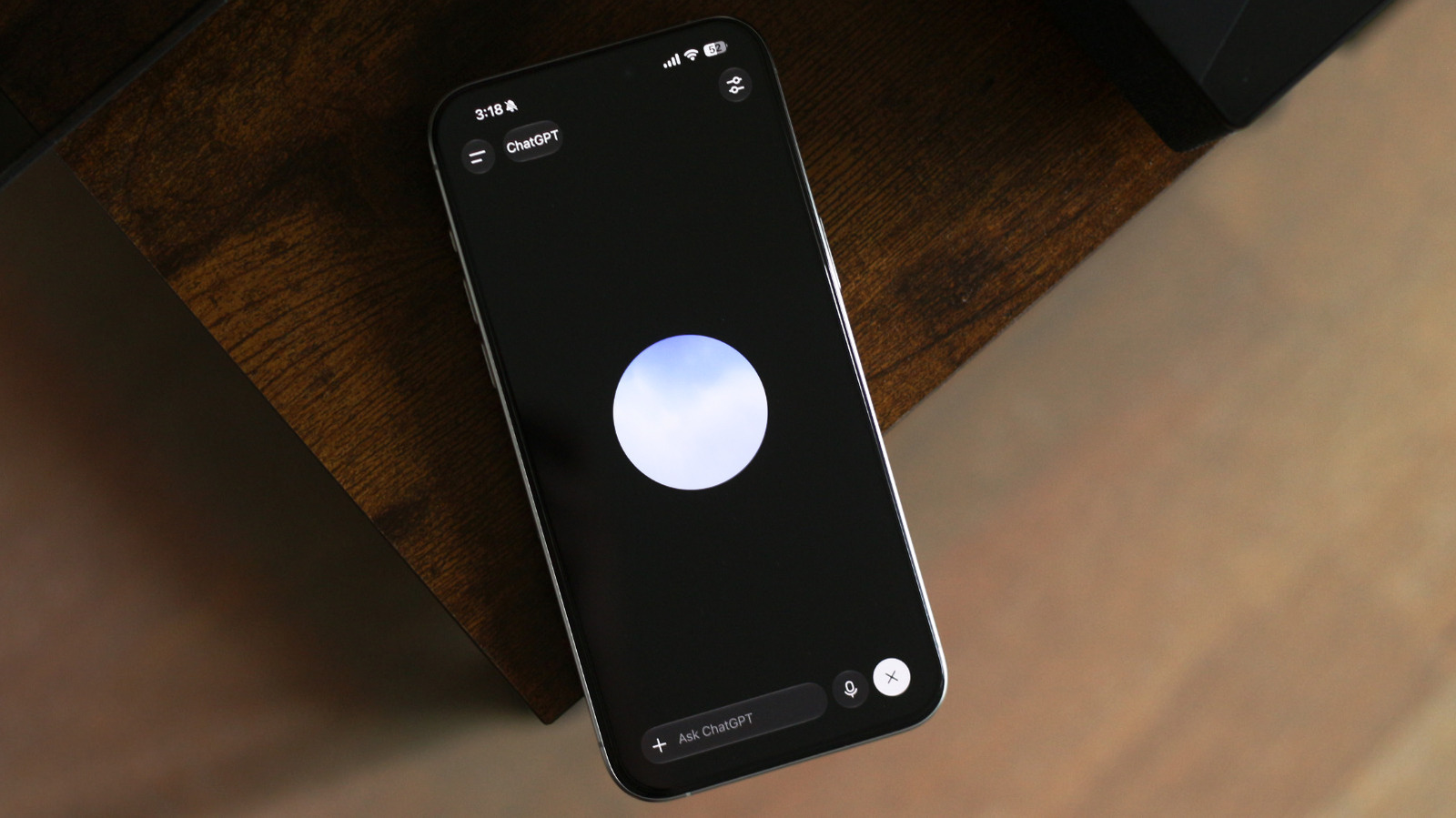
Once you've entered voice mode, you'll see a responsive floating orb on the screen. You can now start talking as you normally would. If you tap on the settings icon at the top-right corner, you can change the intelligence of the voice model. You have three options to choose from: Instant, Medium and High. This customization is not available on the GPT-Live-1 mini model, so currently requires a paid plan. ChatGPT Voice will remain active even if you switch to another app or lock your device.
While the overall experience is an upgrade over the previous iterations of ChatGPT's voice mode, GPT-Live currently doesn't support screen or video sharing. Fortunately, you can revert to the older voice model by heading into ChatGPT's settings, navigating to Voice and selecting a different model. Here, you can also pick a different voice for ChatGPT, change its language or set ChatGPT Voice to be the default mode when you launch the app.
What GPT-Live excels at
I'm someone who prefers typing things out, so I hadn't given much thought to the upgraded version of ChatGPT Voice initially. Well, that is until I actually tried having a few long-drawn conversations with it. What impressed me the most wasn't its intelligence, but how quickly I stopped thinking about the fact that I was conversing with an AI. ChatGPT Voice no longer cuts you off mid-sentence, and you don't need to awkwardly wait for it to finish speaking before jumping back in. With longer queries, I could almost feel like GPT-Live could anticipate what I was going to say next.
GPT-Live's responsiveness makes it a great tool for carrying out live translations, too. At any time during your conversation with GPT-Live, you can scroll down to reveal the transcript of everything being said. If you ask ChatGPT a question that it thinks can be answered better with a visual, it will create an interactive widget alongside its spoken response.
GPT-Live's intelligence level is set to Instant by default, which handles most everyday questions with ease while prioritizing quick responses. It can still offload searches and deeper reasoning to the more capable models in the background while it keeps the conversation flowing. If you do plan on discussing complex topics with GPT-Live more regularly, I found that switching to the Medium and High intelligence levels adds a split second or two of extra thinking time, but the added delay doesn't take away from how naturally the conversation flows.
[Image text:] 3:18
ChatGPT
62
Ask ChatGPT