
Technology
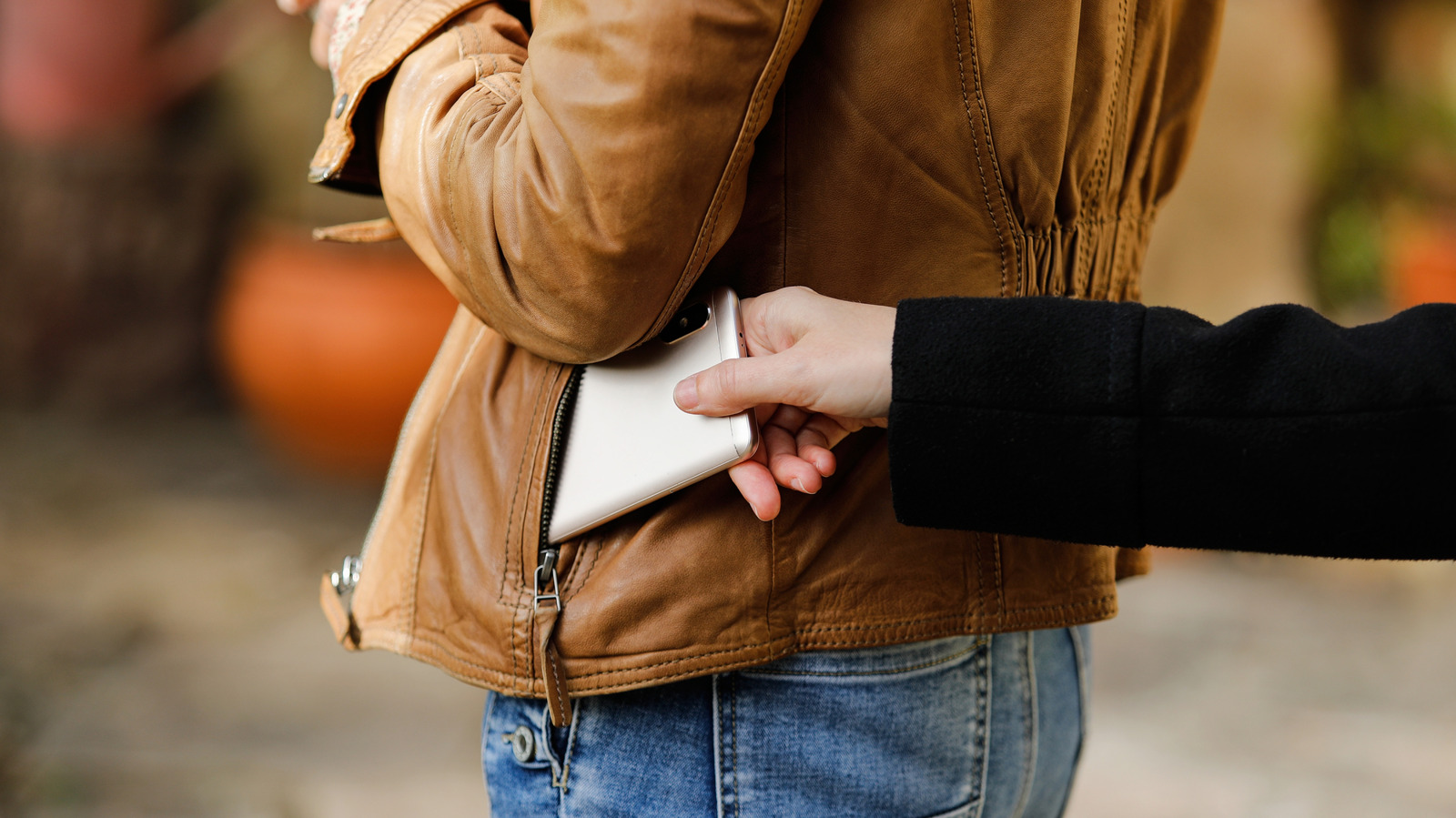
Turn on these settings to protect your Android phone from theft
Key Points
Turn on these settings to protect your Android phone from theft Google has added some smart theft-detection features to Android in recent years. For years, Android anti-theft protection was more reactionary than proactive. Users are all too familiar with traditional warnings and protocols, like shielding your phone when entering your PIN, utilizing location services and avoiding easily guessed passwords.
Turn on these settings to protect your Android phone from theft
Google has added some smart theft-detection features to Android in recent years.
For years, Android anti-theft protection was more reactionary than proactive. Users are all too familiar with traditional warnings and protocols, like shielding your phone when entering your PIN, utilizing location services and avoiding easily guessed passwords. Fortunately, anti-theft tools are finally getting better at preventing theft with the help of AI and Google's built-in Theft Protection suite.
If your phone is snatched out of your hand, for instance, new motion-sensing theft detection will quickly lock it down. If a thief kills your connection by pulling your SIM card or switching to Airplane Mode, the Offline Device Lock feature triggers a countdown, locking the screen in short order. These are nifty new features that avoid annoying false positives with usage limitations and active use checks.
Even better, you don't have to dig deep into your device settings to find and activate theft protection measures. As long as your device is running Android 10 or newer, the feature is bundled into Google Play Services. Keep in mind that some entry-level or budget smartphones running Android Go Edition with low RAM, Android tablets and devices lacking the full range of Google Play Services may not have some or all of Google's security suite features.
How to Enable Anti-Theft Features On Android?
The primary settings to look for are under Google's Theft Protection menu. Settings menus aren't universal with Android phones, so there may be a degree of variation between devices. For Samsung users, the order is typically Settings → Security and Privacy → Lost Device Protection → Theft Protection.
Google Pixel phones are similar, but slightly different: Settings → Security & Privacy → Device Unlock → Theft Protection. The most prominent feature is Theft Detection Lock, and it's best to start there. This uses motion and sudden disconnection indicators (like your phone being snatched and moved quickly) to lock down your phone screen automatically. After you turn it on and confirm, your device will now respond to aggressive or sudden movement.
Next, enable Offline Device Lock so your screen stays protected if a thief disables your mobile data or Wi-Fi by switching Airplane Mode on. The lock will kick in shortly after disconnect and doesn't require a local connection to do so. Last but not least, set up Remote Lock. This lets you lock your phone from anywhere by visiting android.com/lock, entering your phone number and following the prompts. Google's Find Hub app is no longer your sole fallback option, and Remote Lock works even if the thief moves the phone to another network.
How Can You Prevent Thieves from Turning Off Your Device?
You'll never fully take advantage of the Theft Protection features if you don't use a PIN, biometrics and a more complicated password than your first name. Besides, Google explicitly requires a screen lock for Identity Check and other device-protection tools, so you may as well set it up properly. On Pixels and newer Android phones, Identity Check can periodically re-verify using your biometrics or PIN, especially when you're off your regular beaten path and away from work or home.
Enable Theft Detection Lock and Offline Device Lock so your phone auto-locks and remains that way, even if the thief yanks it offline. If they try to power it down or keep it in Airplane Mode, your data remains secure behind the screen lock, completely shielded. On Samsung Galaxy phones, there is a dedicated Theft Protection page that ties into Samsung's own lost-device tools as well.
Make sure Remote Lock is enabled and your phone number is verified, so you can lock your phone down from any browser the moment you realize your phone is gone and you didn't leave it on top of the car or inside the refrigerator. Hey, it happens.