
Entertainment
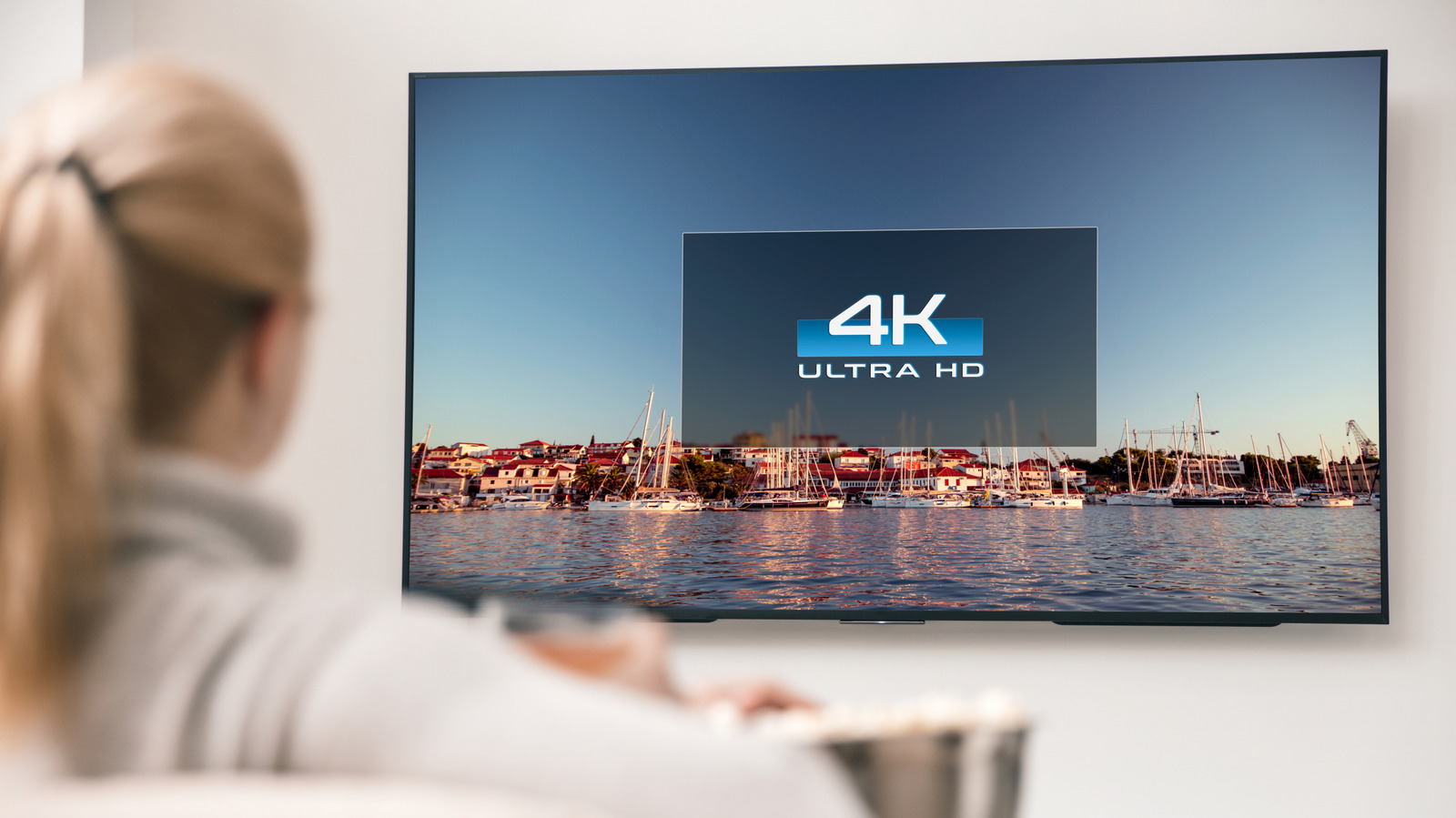
How to check if your TV is playing in 4K or not
Key Points
How to check if your TV is playing in 4K or not You'd think everything on a 4K TV is displaying in 4K, but it's unfortunately not that simple. If you have a 4K TV, along with a 4K video source like a premium streaming subscription tier or modern gaming console, then you should be watching everything in 4K, right? Unfortunately, this isn't necessarily the case.
How to check if your TV is playing in 4K or not
You'd think everything on a 4K TV is displaying in 4K, but it's unfortunately not that simple.
If you have a 4K TV, along with a 4K video source like a premium streaming subscription tier or modern gaming console, then you should be watching everything in 4K, right? Unfortunately, this isn't necessarily the case. On your TV, streaming services, and any connected devices, you'll have to do a few checks to confirm if you're actually watching at the desired resolution.
The first step is to confirm that you even have a 4K TV. If you aren't sure, go to the main Settings page and look under the About or Info tab, where you should find model information. If the model has "4K" or "UHD" in its name, it supports this standard. Otherwise, look up the specific model name or number to check — if it's not in the menu, it might be printed on the back or front of the unit.
Once this is confirmed, you can move on to next steps, which involve confirming that your source devices, content and settings are all set up for 4K.
A few easy steps to check on your TV first
After establishing your TV is 4K, as long as you're playing 4K sources, the TV should display them as such. Virtually every 4K TV from brands like Samsung and LG automatically detects the resolution of what's playing and displays in its native resolution. There's no manual adjustment option. Many remotes have an Info or similar button that shows a banner indicating the current output resolution. You might also be able to see this by hovering over a source in your TV's menus.
With many TVs, you can adjust the picture size with options like 16:9, fit to screen, or custom if desired, though this is separate from resolution. LG TVs offer a feature called Super Resolution for image scaling, but this is for upscaling lower-res content on a 4K TV. Your 4K TV likely has different viewing modes like Cinematic and Gaming; swapping between these will adjust the picture and processing, but won't change the resolution itself.
Adjust your source device and streaming settings if needed
Your TV will only output what's being sent from the connected device. The best streaming devices support 4K, but some older or cheaper models only go up to 1080p. So if you're using a gaming console, streaming stick, or similar device, check its settings to make sure 4K output is enabled. Be sure you're using a modern HDMI cable that supports 4K, as well.
With most streaming services, you must subscribe to the highest tier to access 4K streaming, but may still need to enable this option. For example, for Disney+, go to the main Settings panel, then App settings. There's an option for data usage, under which you can choose Automatic to "stream in the highest quality available" (up to 4K UHD, which uses around 7.7 GB/hour). There are also Moderate (HD) and Save data (SD) options. As long as Automatic is selected and you subscribe to the appropriate plan, you should be streaming in 4K when available.
When using a service that lets you change the quality on-demand, like YouTube, set the quality of the current video to 4K (though not all videos are uploaded in 4K). Live TV services typically include "4K" in applicable channels' number labels, though this has caveats. Such channels may be lower-res content that's upscaled instead of native 4K. Live TV rarely streams in true 4K outside of special sports events.
Virtually all Apple TV originals are in 4K, but not every show or movie you can stream via Apple TV is. You'll see the available resolution in the information list under the title when you select it. Ted Lasso, for example, is available in 4K, but live sports may not be. Amazon Prime Video has 4K on offer, but it's now locked behind a higher-cost Amazon Prime Video Ultra tier that removes ads and adds 4K access for available titles.
All stars must align for 4K viewing
Provided you have a 4K TV and you're watching from a 4K source with the applicable plan, you should be watching in 4K. Though a show may be presented in 4K on a service like Netflix, if you aren't subscribed to Premium, it won't be streamed at that quality. When watching 1080p or even SD content, your TV may have an upscaling feature that improves the picture so it looks better, but it isn't truly 4K. It's similar with gaming: even though the PS5 supports 4K, some games will output at a lower resolution (which may be upscaled) to achieve a stable frame rate.
It's possible that a service could be downgrading quality to ensure you get a smooth viewing experience, rather than showing a constant buffering wheel because your network can't keep up. You can check if Netflix is downgrading your picture quality, for example. To avoid this, make sure you have a solid internet plan. 25Mbps is the minimum recommended for 4K streaming, though Dolby Vision content or watching on multiple devices at once will require more bandwidth.
As long as all parts along the train support it, your 4K TV will show 4K content from a 4K source. If not, you'll be watching at a downgraded resolution. Once you verify that you have a 4K TV, it all comes down to the source of the content.
[Image text:] 4K
ULTRA HD