
Technology
How to use Google Gemini to automate tasks
Key Points
How to use Google Gemini to automate tasks Spark is Google's AI tool that can perform tasks on your behalf. One of AI's promises, on the less "humanity-destroying" end of the spectrum, is to make everyday life a little smoother. Instead of tackling each item on your to-do list by yourself, perhaps a reliable AI tool could cross a few entries off for you, leaving you to attend to the more important bits.
How to use Google Gemini to automate tasks
Spark is Google's AI tool that can perform tasks on your behalf.
One of AI's promises, on the less "humanity-destroying" end of the spectrum, is to make everyday life a little smoother. Instead of tackling each item on your to-do list by yourself, perhaps a reliable AI tool could cross a few entries off for you, leaving you to attend to the more important bits. Getting a recap of the last 20 emails in your inbox might let you dive into your work faster in the mornings, or at least give you a couple of extra minutes to stare into the middle distance while sipping your coffee.
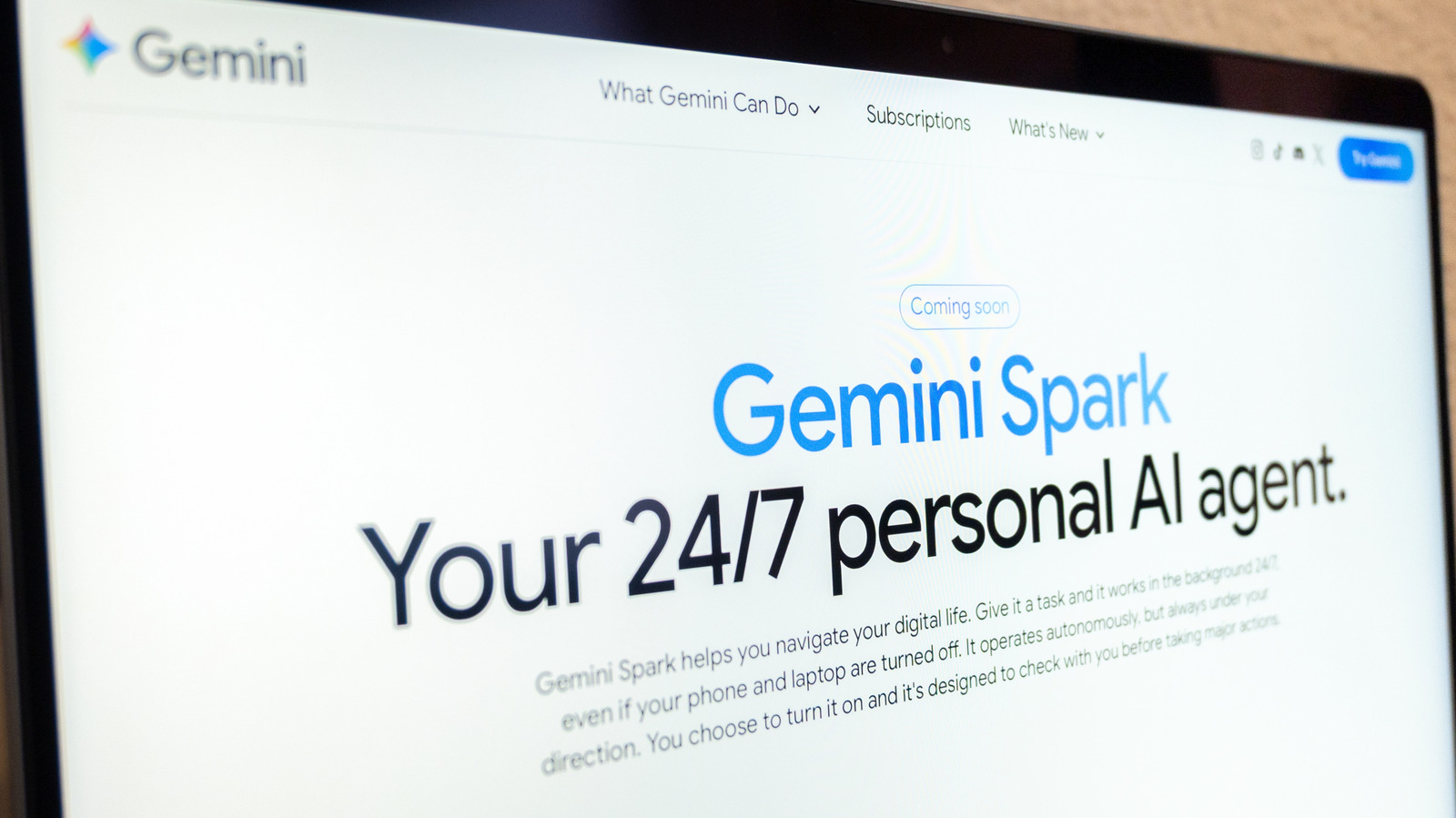
If you're committed to the Google ecosystem, Gemini Spark might offer a way to automate the tasks you'd rather farm out. Spark is an agentic personal assistant announced in May at Google's annual I/O developer conference. You can give it a task, and it can run in the background, taking what Google describes as "proactive action," while still adhering to your instructions.
The Gemini Spark website gives a few examples of what you can do with it, like turning your last 50 email responses into a style guide covering how you answer emails, or setting up a tracker for internships. It's integrated into Google Workspace apps like Docs, Calendar, Slides and Gmail, as well as Personal Intelligence, a feature Gemini uses to customize suggestions based on information from your Google apps.
Here's how to use Gemini Spark to automate tasks.
Before you start
To access Gemini Spark, you'll need to be a Google AI Pro or Ultra subscriber. Certain business subscribers might also have access. (You also can't be located in the European Economic Area, Switzerland, the UK or Nigeria.) You'll also need "Keep activity" switched on, which the company says "lets you pick up chats where you left off." Spark is available through the Gemini mobile app, the Gemini Mac app and the web app. Spark also works with Gemini in Chrome using auto browse to do tasks like book restaurant reservations, travel and the like.
Aside from the basics of getting set up, Google also has some words of caution. As glorious as it would be to just set it and forget it, it's worth the reminder that AI can still make mistakes, so keep an eye on whatever tasks you've set up. Google itself also warns not to put sensitive information into the task thread. That means you shouldn't be giving Gemini login or payment information. Instead, Google recommends entering that type of info yourself directly on the relevant website. Google also cautions against scheduling tasks that are too sensitive, particularly if the task is set to run while you're offline. Consider whether a mistake like a hallucination could cause actual harm.
How to create a task
Whether you're on the mobile or web app, select Menu, and then select Spark. Then, you can type into the textbox whatever task you want Spark to accomplish. The Spark website gives this prompt, for example: "When I receive an email inquiring about my photography services, automatically extract the client's name, requested date, and log the lead in my 'Client Tracker' Sheet. Then create a new Google Drive folder named after the client." If needed, it's at this point that you can also upload a relevant file, or something from your Drive or a Notebook. Then, tap or click Submit.
Google emphasizes monitoring your tasks in case Gemini needs something from you, like taking over a task in the browser. To keep an eye on your tasks, once again go to Menu > Spark and then Tasks. That will let you see the thread associated with the task, and if you need to make updates, you can do it right there. You can also look at the work panel, which shows you information like the completed, current and planned steps, by tapping the progress chip at the top of the thread.
At the end of September, Google said it would replace Gemini Gems with skills as the method for dictating instructions for tasks. In a blog post, the company described how you can use skills to automate repetitive tasks. A skill might be instructions for preparing for presentations or adopting a specific writing style. Google said that once you've created a skill, if you want to use it again on a task, you'll be able to type a forward slash and the skill's name when you're writing your prompt.
[Image text:] Gemini
What Gemini Can Do
Subscriptions
What's New
Gemini Spark
Coming soon
personal Al agent.
Your 24/7 p
Gemini Spark helps you navigate your digital life.Give it task and it worksinthe backgo
even if your phone and laptop are turned off It operates autonomousy.but aways under yo
direction.You choose to turn it on and it's designed to check with you before takngmapr actos