
Technology
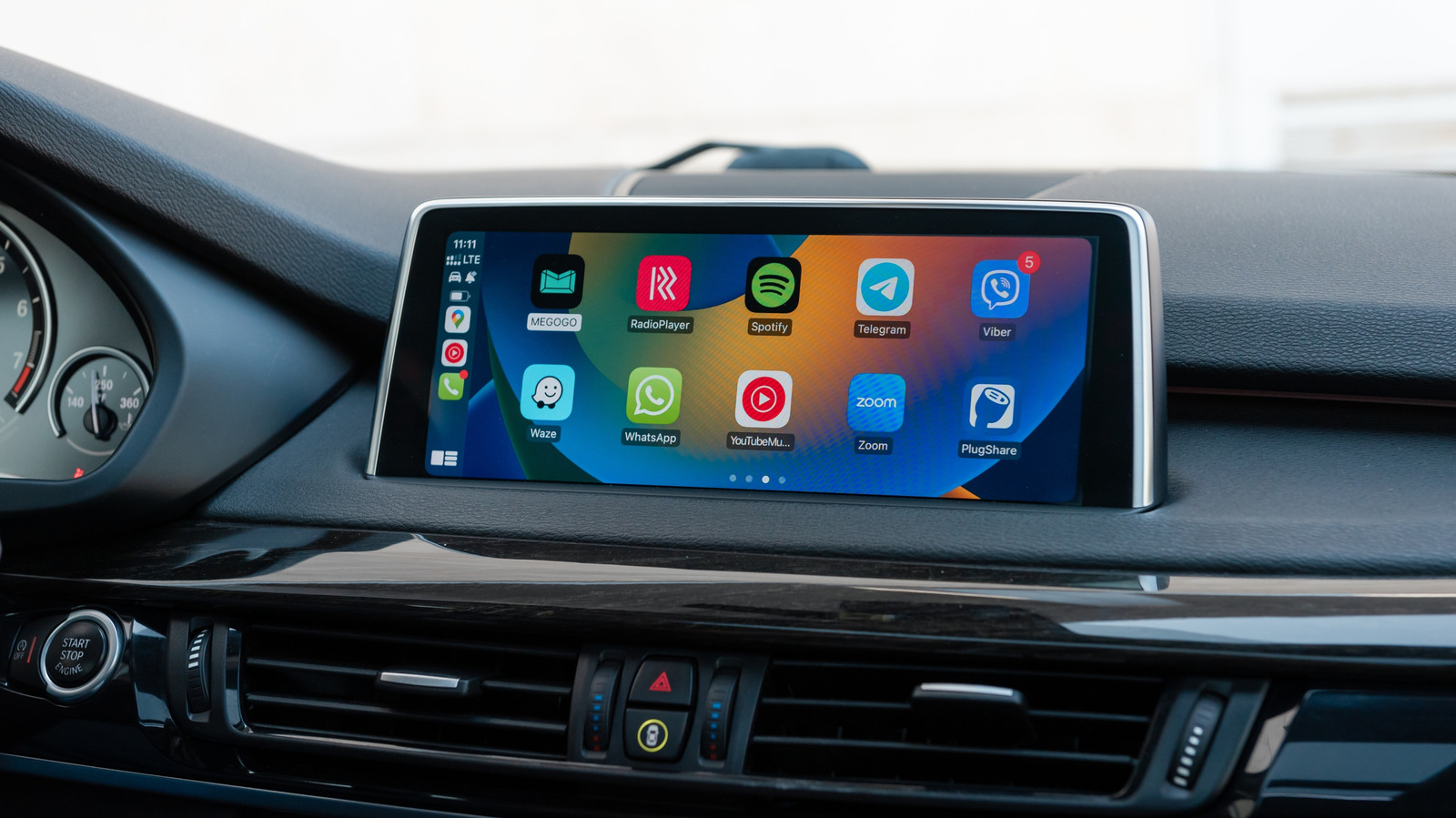
What does the bell icon mean on your CarPlay screen?
Key Points
What does the bell icon mean on your CarPlay screen? Demystifying one of CarPlay's least-obvious icons. While some elements used in software design are so common that nearly everyone knows what they do (like share and search), others are more obtuse.
What does the bell icon mean on your CarPlay screen?
Demystifying one of CarPlay's least-obvious icons.
While some elements used in software design are so common that nearly everyone knows what they do (like share and search), others are more obtuse. You might have noticed this in Apple's CarPlay, which is intentionally simplified for the sake of reducing distractions. Yet there's a lot that goes unsaid: with the lack of a tutorial, you aren't shown how its multitasking works, never mind troubleshooting CarPlay problems or understanding what's new in the latest version.
One smaller CarPlay mystery is the nature of the bell icon that sometimes appears on the app switcher panel. It makes sense once it's explained, and it's easy to toggle its associated option. But Apple doesn't seem terribly invested in making this clear.
What CarPlay's bell icon actually means
As it turns out, Apple uses the bell icon to signal that Siri is automatically announcing incoming messages, whether from first- or third-party apps. This can be useful for keeping up with conversations without having to ask Siri yourself or check apps on your phone later once parked. At the same time, it can be annoying for noisy group chats, or when Siri repeatedly interrupts your music or podcasts. And when you're driving with passengers, they probably don't need to know what's going on in your Messages or WhatsApp conversations.
To adjust this feature, grab your iPhone and navigate to Settings > Notifications > Announce Notifications > CarPlay. When the general Announce Messages toggle is on, you'll find three additional options below. Remember Previous Setting is the default, but you can also force CarPlay to Announce or Silence incoming messages whenever it runs.
If you haven't already, you should also select which apps you want to allow announcements for under the Settings > Notifications > Announce Notifications menu. It's wise to limit announcements to apps without group chats, if possible. You'll want to know right away if your spouse will be late, but group chats are often full of trivial conversations that don't involve you. Disable announcements for other apps whose notifications don't matter while driving, like shopping and food apps.
You're driving a multi-ton death machine — the freer your mind is to focus on the road, the better.
You should be using Driving Focus anyway
In most cases, the better way of managing incoming alerts while on the road is setting up a Focus mode for driving. You can add and customize this mode on your iPhone by going to Settings > Focus. Tap Driving if it's there; if not, hit the Plus icon to add it.
Once it's active, you can customize this Focus to only allow calls and notifications from particular contacts while you're driving. You can also activate an auto-reply to let some people (or everyone) know you're busy. If you're worried about missing something, there's an Intelligent Breakthrough & Silencing toggle that may allow some other notifications to reach you if they're deemed important.
After configuring it, scroll down on the Driving Focus page and tap the While Driving button. There you can toggle Activate With CarPlay, which will switch the Focus on and off without you having to do anything manually. You can make the mode even more aggressive with the other options at the top, but those are designed for vehicles without CarPlay.
You may have to experiment to find what combination of Focus settings and message announcements works best for you. Though as we've suggested, it's smart to err on the side of receiving too few alerts rather than too many. It's rare that anything sent to your phone is more important than the task of driving.
[Image text:] @
11:11
LTE
A
D
O
MEGOGO
R
RadioPlayer
Spotify
Waze
WhatsApp
YouTubeM...
Telegram
zoom
Zoom
Viber
PlugShare