
Technology
6 Google Maps features that work better on Android Auto vs. CarPlay
Key Points
6 Google Maps features that work better on Android Auto vs. CarPlay I tested Google Maps on both systems in the same car, and Android Auto made several everyday navigation tasks noticeably easier. Google Maps is available on both Android Auto and Apple CarPlay, but it's not the same experience — even when using the same app in the same car. I performed identical searches, route changes and simple navigation tasks back to back on both systems using the same infotainment screen.
6 Google Maps features that work better on Android Auto vs. CarPlay
I tested Google Maps on both systems in the same car, and Android Auto made several everyday navigation tasks noticeably easier.
Google Maps is available on both Android Auto and Apple CarPlay, but it's not the same experience — even when using the same app in the same car. I performed identical searches, route changes and simple navigation tasks back to back on both systems using the same infotainment screen.
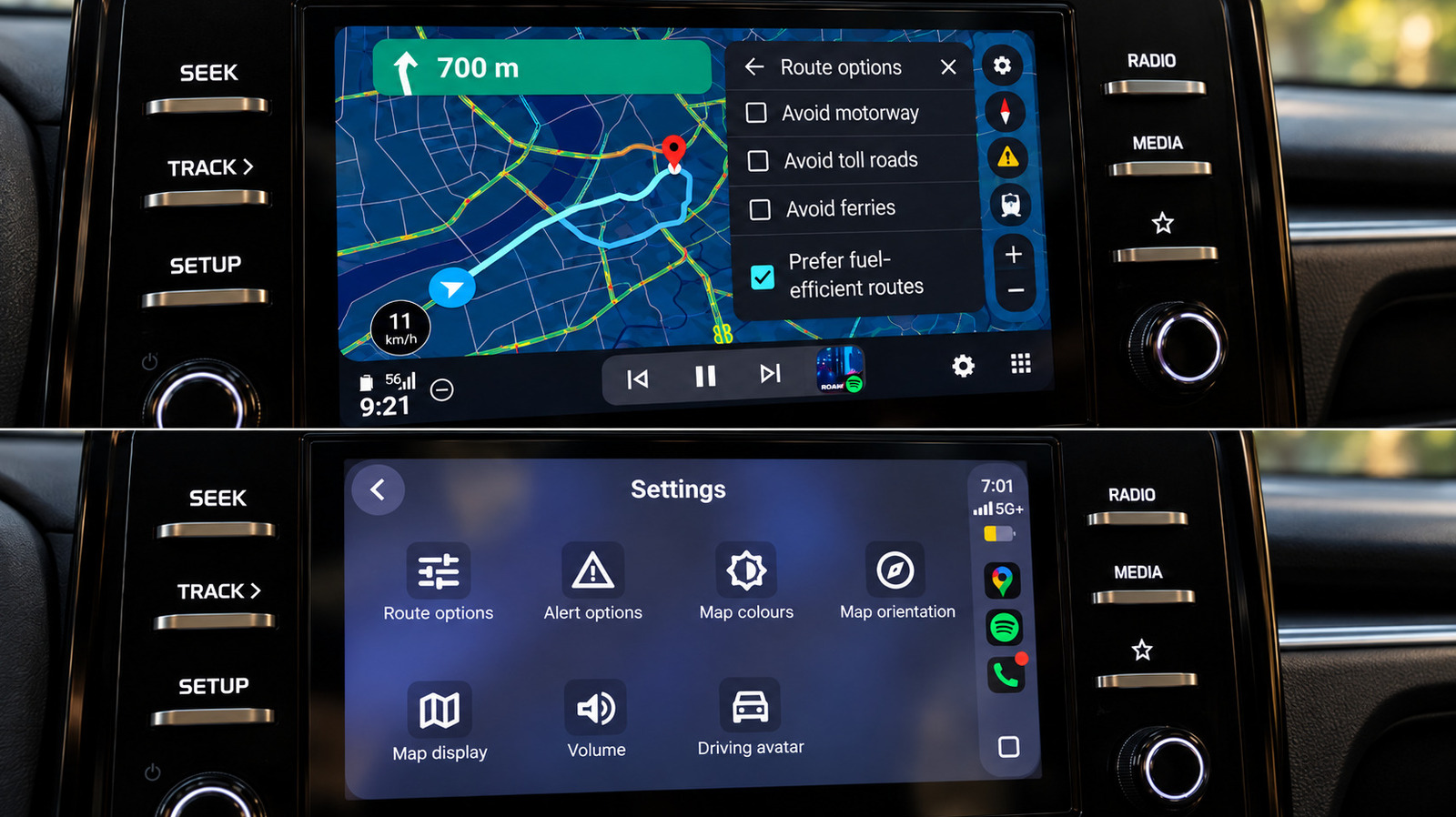
Generally speaking, the fundamentals are close. Both provided me with a speedometer, lane guidance, incident reporting and alternative-route suggestions, as well as the standard controls for avoiding tolls, highways and ferries. The differences were much more apparent after I began using Maps for more than just getting from A to B.
The benefits of Android Auto range from minor interface details to features that still work better there than on Apple's offering. CarPlay does recover a few points, but Google Maps generally feels more at home on Google's own platform. Shocking, I know.
Gemini handles searches and route changes without making you poke the screen
The clearest difference is how Gemini is accessed, and it still gives Android Auto an edge in two areas.
First, Gemini is easier to invoke on Android Auto. I could start talking to it without touching the screen. Late in my testing, a Gemini button also appeared in Google Maps on CarPlay, and it handled conversational searches and follow-ups once I tapped it. However, I couldn't summon it hands-free there. At the time of testing, Google's own help page still said Gemini wasn't available for CarPlay.
Second, route changes felt quicker on Android Auto. I asked it to locate a fuel stop on my route, then requested a pharmacy without reopening the conversation, and when I asked if there were other ways to get home, the options were immediately displayed. Gemini can search along a route, refine the results, add stops and show alternative routes. CarPlay could handle the same kinds of requests once Gemini was open, but it was noticeably slower in my test.
But it wasn't magic all the time. Gemini sometimes hung on a loading screen and failed to connect once during my test. However, being able to start those interactions without reaching for the display remains a significant benefit when the display is in the center of your dashboard, as it is in my 2025 Kia Sonet.
Search results are easier to compare, and the map is easier to explore
The third advantage became obvious when I was looking for places along a route. In my test, Maps showed me a number of options along with ratings and the additional time each option would take. Picking between a stop that's one minute away and another that adds six shouldn't require detective work.
CarPlay displays a series of results, one at a time, and has Previous and Next controls to scroll through the results. It can still provide valuable information like gas prices and detour times, but it takes more effort to compare several options.
The fourth difference was the interaction with the map. Android Auto kept zoom controls in easy reach, and pinch-to-zoom worked directly in my test. CarPlay made me enter its standalone map-control mode, and pinch-to-zoom didn't work for me.
That isn't to say that CarPlay cannot technically support gestures. Android Auto's navigation framework supports tap, scroll and pinch interactions, while CarPlay features its own map template and controls. In actual use (in my car anyway), Android Auto was less demanding when I needed to see farther down the road or check out another section of the trip.
It's a small difference in theory. But when you're trying to look ahead at an unfamiliar interchange, it starts to matter.
Android Auto gets useful destinations in front of you sooner
Google Maps also did more before I had even entered a destination.
Android Auto instantly displayed a Home shortcut with a live ETA and distance. In addition to Categories and Saved locations, the Recent section can also show recently visited locations and suggestions based on recent Maps searches.
That makes destination suggestions and shortcuts the fifth benefit. In my testing, CarPlay's initial Maps screen was a lot more bare-bones and required a search to reach the same information.
During my trial runs, Android Auto also made Google's fuel-efficient routing more transparent. It marked one of the choices as the most fuel-efficient and indicated the estimated fuel savings. Fuel-efficient routing isn't exclusive to Android Auto, as the same preference was also available on CarPlay in my test. But for me, Google Maps did a better job of explaining the recommendation on Android Auto.
One usability win for CarPlay here: Color-scheme controls for Automatic, Day and Night are easily accessible from the car screen's interface.
EV trip planning goes much further on Android Auto
The sixth benefit is something I haven't been able to try in a gas-powered vehicle, but it's much more useful for compatible EVs in the US.
Google Maps can estimate battery consumption for a trip on supported Android Auto vehicles based on the vehicle's characteristics, traffic, road elevation data and weather conditions. Enter the current battery level, and it can then suggest charging stops, estimate the battery level at arrival and incorporate charging time into the ETA.
That's one step further than locating local charging stations. The charging stops are integrated into the route calculation, and that's just what you want Maps to do before the battery percentage gets too low.
A key drawback of Google Maps on iPhone is that its energy-efficient EV routes don't include charging stops. Android Auto's new battery-aware system can incorporate those stops into the trip and adjust the route accordingly. Google's announcement didn't mention a comparable CarPlay rollout. The rollout covers more than 350 EV models from over 15 brands in the US.
[Image text:] SEEK
TRACK>
SETUP
SEEK
TRACK>
SETUP
700 m
km/h
56
0
9:21
14
Route options
Avoid motorway
Avoid toll roads
Avoid ferries
Prefer fuel-
efficient routes
A
Settings
7:01
5G+
Route options
Alert options
Map colours
Map orientation
M
Map display
Volume
Driving avatar
RADIO
MEDIA
X
RADIO
MEDIA