
Technology
How Apple's Thunderbolt ports are different from USB-C
Key Points
How Apple's Thunderbolt ports are different from USB-C Not every USB-C port is Thunderbolt, and features can vary wildly. If you've wondered whether Thunderbolt is the same as USB-C, the simple answer is "not exactly." USB-C isn't a charging standard or speed; it simply describes the shape of the port and connector.
How Apple's Thunderbolt ports are different from USB-C
Not every USB-C port is Thunderbolt, and features can vary wildly.
If you've wondered whether Thunderbolt is the same as USB-C, the simple answer is "not exactly." USB-C isn't a charging standard or speed; it simply describes the shape of the port and connector. Thunderbolt is a standard that uses the USB-C connector for its modern iterations. So on a modern Mac, every Thunderbolt port is USB-C, but not every USB-C port supports Thunderbolt. (Older Thunderbolt versions used the now-obsolete Mini DisplayPort.)
Picture USB-C as a door. On a modern Mac, every door looks the same, but what's behind each can be quite different. On a MacBook Neo, for example, there are two doors. One is a narrow path with enough space for just one person at a time: that's its USB 2 port, which tops out at 480 Mbps. Behind the other door is a road with enough space for cars to pass. That's its 10 Gbps USB 3 port, which can also power a display. Either can be used for charging.
However, open the door on the MacBook Pro M4 Pro and you'll see a freeway where trucks, buses and cars all zoom through. That's Thunderbolt 5, and it tops out at a blazing-fast 120 Gbps when data moves in one direction.
The same-looking door can hide wildly different roads. Speed aside, other differences including external monitor support, compatibility and cost distinguish Thunderbolt from regular USB-C ports.
What makes Mac Thunderbolt ports different from USB-C
The major difference between Thunderbolt ports and regular USB-C is speed. Standard USB-C ports support speeds anywhere from 480 Mbps on USB 2 to 80 Gbps on USB4 Version 2.0. On the other hand, Thunderbolt 4 and 5 top at 40 Gbps and 80 Gbps (up to 120 Gbps in one direction) respectively.
On paper, that puts USB4 Version 2.0 on par with Thunderbolt 5. The difference is manufacturers can choose to make USB4 run as slow as 20 Gbps, while every Thunderbolt 5 port must support 80 Gbps. To put that difference into perspective: on the MacBook Neo's USB 3 port, it'll take about seven minutes to move a 500GB file. Thunderbolt 5 on the MacBook Pro M5 Max will get it done in less than a minute. This speed also allows Thunderbolt 5 ports to support up to three 4K monitors over a single port.
Another difference is guaranteed features. For the various non-Thunderbolt USB generations, it can be difficult to know exactly what a USB-C port supports, especially since features like speed tiers, DisplayPort Alt Mode and Power Delivery are optional to include. So you might have two USB 3 ports, but only one port supports video output. Then there's USB's confusing naming scheme: USB 3, for example, can indicate speeds anywhere from 5 Gbps to 20 Gbps depending on the exact "USB 3" implemented. This isn't an issue with Thunderbolt because every port must support a defined and mandatory list of features, including fast data speeds, displays and charging on newer versions.
Thunderbolt ports and cables cost more than USB-C. Thunderbolt is a standard co-developed by Intel and Apple, not the USB Implementers Forum. And manufacturers have to put the ports and cables through a rigorous testing process to obtain Intel's certification and officially use the Thunderbolt name and logo. That cost gets passed to buyers.
Mac Thunderbolt and USB-C compatibility
Thunderbolt standards use the USB-C connector, and you can plug almost any USB-C device into a USB-C port. But how well it will work depends on the port, cable and device you're plugging in. For example, if you plug a standard USB-C drive into a Mac's Thunderbolt port, it will work fine and will simply run at the drive's speed.
The reverse is a bit trickier. If you plug a Thunderbolt-only external SSD into a MacBook Neo, for instance, it won't work. Thankfully, newer accessories can usually fall back to slower USB speeds to improve compatibility. The cable you use matters too. Use a Thunderbolt cable and you'll have no issues with a regular USB-C port or connected device. Use a regular USB-C cable with a Thunderbolt device and it'll limit the speed to the cable's standards.
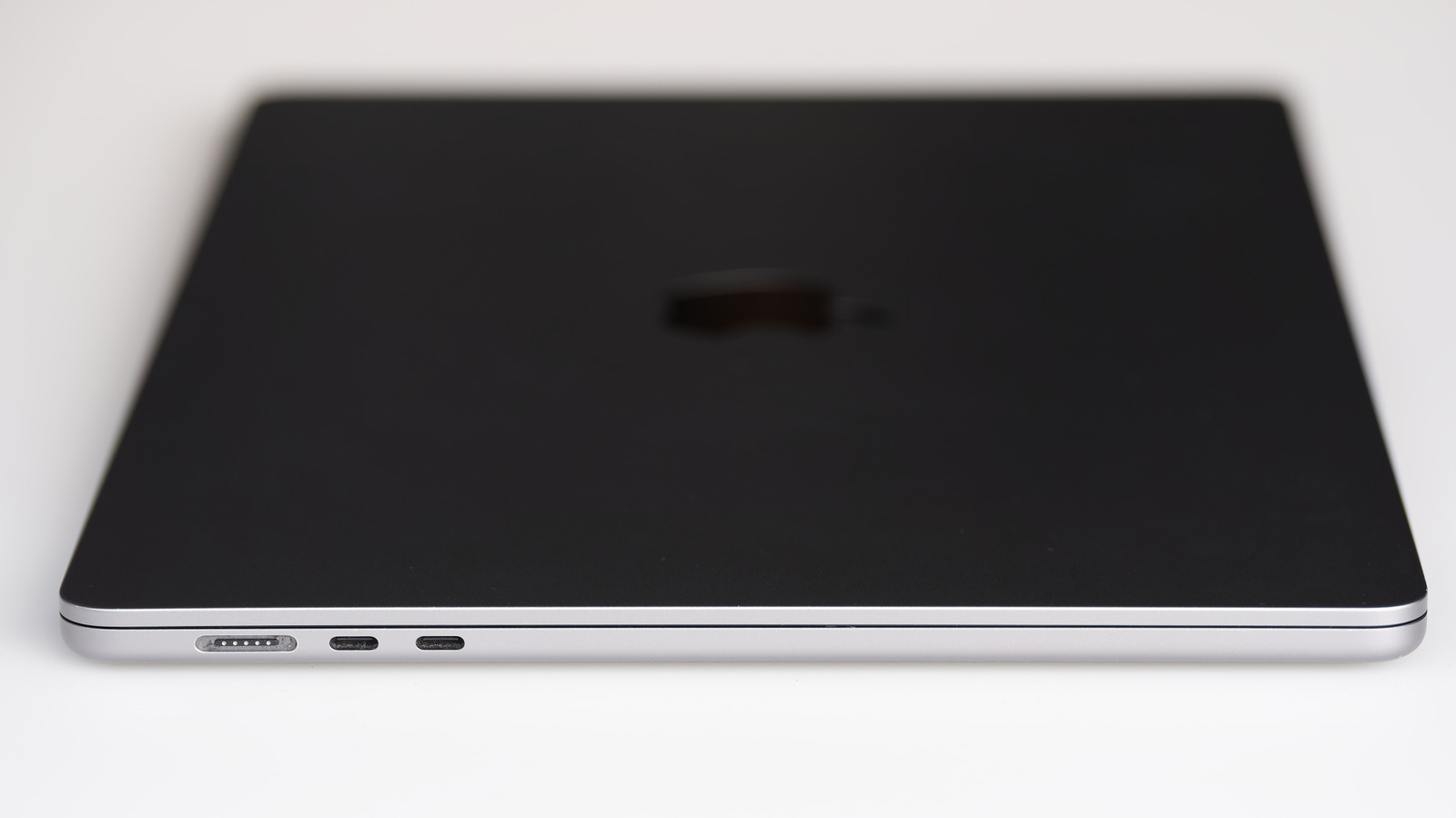
On MacBooks, Apple doesn't label the ports, so it can be hard to tell which is which. The best way to check is using Apple's Tech Specs page: copy your Mac's model name from About This Mac under the Apple menu, then paste it into the search bar on Apple's site and click the specs page for your Mac. Search for "Thunderbolt" or "USB" to see what your machine has.
Thunderbolt offers superior speeds and guaranteed features, but that doesn't mean USB-C is bad. If you don't need the benefits of Thunderbolt, a standard USB-C port works fine for charging and file transfers.